

What is Bulk Edit? #
The Bulk Edit feature allows you to update multiple transactions simultaneously, saving you time and effort. Whether you need to change five or fifty transactions, the Bulk Edit feature enables you to make these updates in one go.
How to Bulk Edit Transactions #
- Open Transactions:
- Navigate to your Piere app’s Transactions page.
- Activate Bulk Edit:
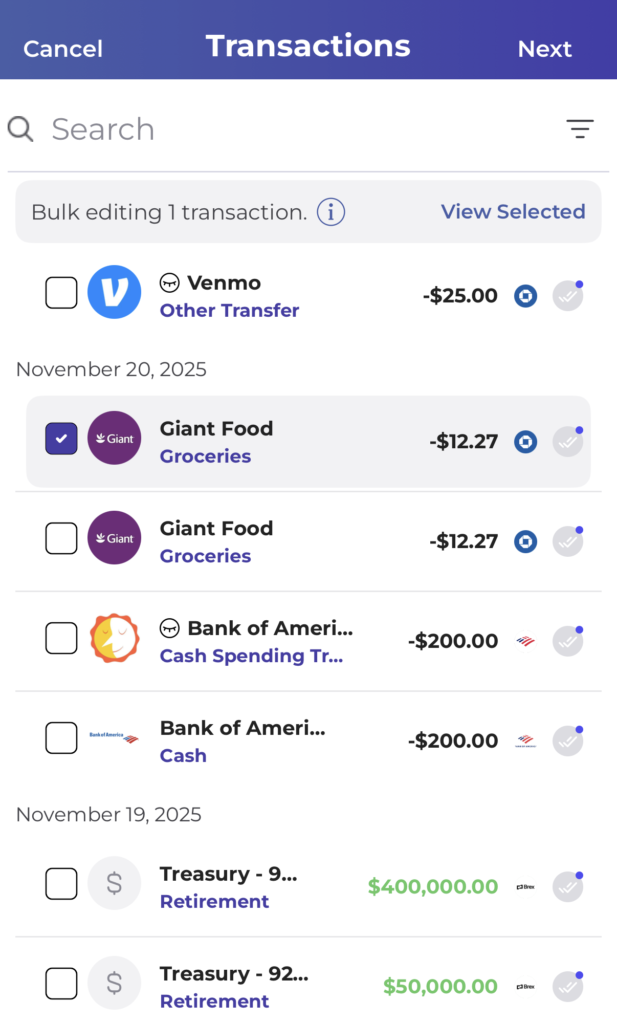
- Press and hold on any transaction to activate the Bulk Edit feature. You’ll see a series of checkboxes appear to the left of each transaction when the feature is ready.
- Note that pending transactions cannot be bulk edited, so ensure you start with a non-pending transaction.
- Select Transactions:
- Once the Bulk Edit tool is open, select the transactions you want to edit. You can either select them individually or use filters to find the specific transactions and then click “Select All” to add them to the group. Note, you can view the transactions you’ve selected at any point by pressing “View Selected.”
- Edit Transactions:
- After selecting the transactions, press “Next” to open the Bulk Edit module.
- Make Your Edits:
- In the Bulk Edit module, you can update various details for the selected transactions:
- Merchant: Type in the merchant name.
- Date: Choose a historical or future date.
- Category: Select an existing category or create a new one.
- Tags: Add existing tags or create new ones.
- Notes: Add a note to all selected transactions.
- Include/Hide in Budget: Choose whether to include or hide the transactions in your budget.
- In the Bulk Edit module, you can update various details for the selected transactions:
With the Bulk Edit feature, managing your transactions becomes more streamlined, allowing you to focus on more important aspects of your financial management.